Proofpoint Essentials
Last updated: October 23, 2026
How to connect Proofpoint Essentials to Cork
Connecting Integration
Note: The Proofpoint integration utilizes a Proofpoint username and password. Depending on your company’s security policies, you may consider setting up a new user in Proofpoint that will be used for this connection.
Log into Proofpoint
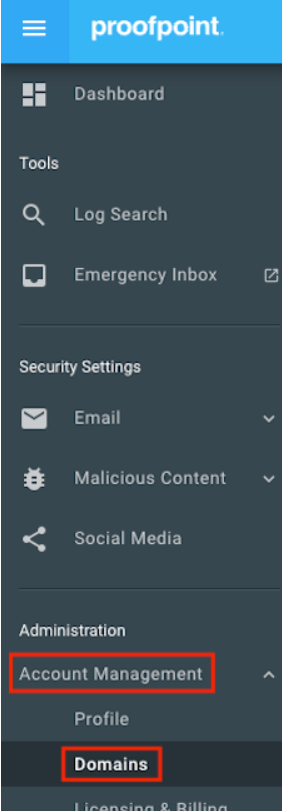
Navigate to Account Management > Domains
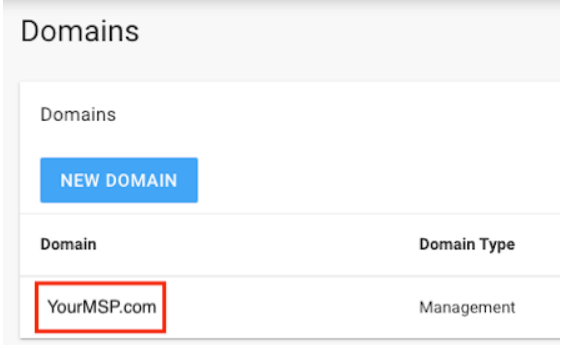
In the Domains section, copy the name of the your primary management domain
Log into Cork Protection
Navigate to the Integrations page
Scroll down to the Business Email Compromise section
Locate Proofpoint and click “Configure”
Paste the previously copied Domain into the Primary Organization field
Enter the Username and Password of the user which should be used for the integration
Note: You may need to uncheck the
Read-Only Userbox in Proofpoint for the account that's used for the integration to enable API access.
If your Proofpoint management domains differ from the default (https://us1.proofpointessentials.com), input your Proofpoint Host as well
(Optional) If desired, enter a display name for the integration
Click the “Connect” button
Note: Proofpoint requires users to update their password periodically (~180 days) to continue supporting API capabilities for a given account. If after a period of time your Proofpoint integration fails to connect, reset the password on the account used to create the integration and update the integration in Cork via the Integrations page