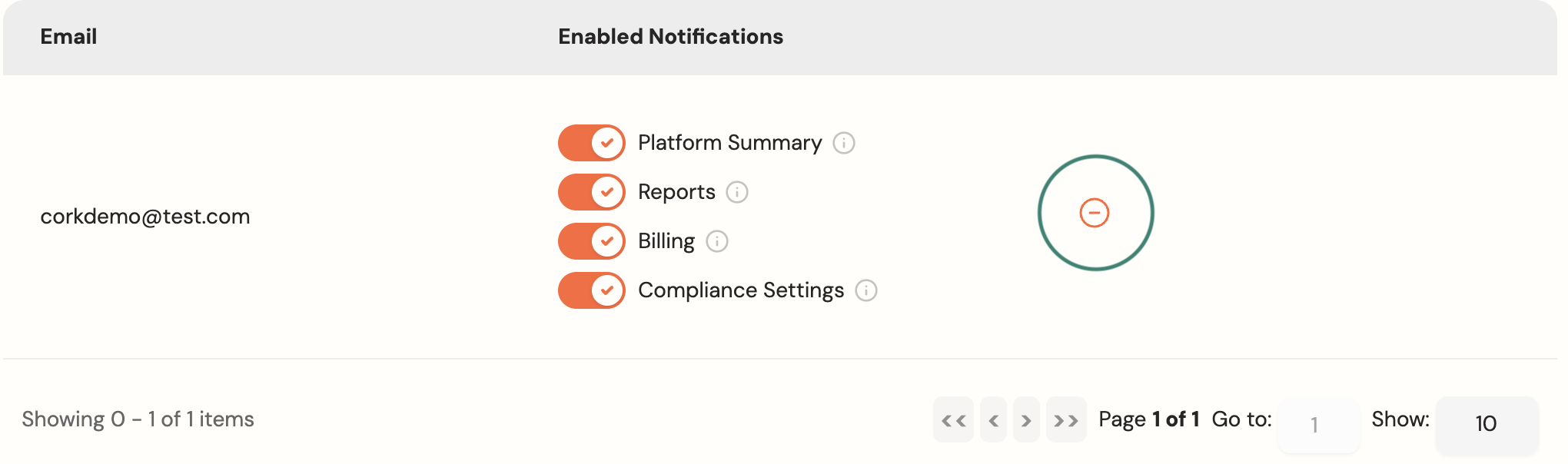
Managing Email Notification Preferences
Last updated: August 21, 2026
Purpose: Decide who gets emails from the platform, and what they get emailed about. Add any email address, pick the notification types it should receive, and change or remove it whenever you need to.
How-To: Add Email Notifications
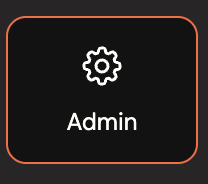
Navigate to the 'Admin' page via the nav-bar on the left-hand side of the screen
Navigate to the 'Notifications' tab

Click 'Add Email', which is the email that will receive the notifications
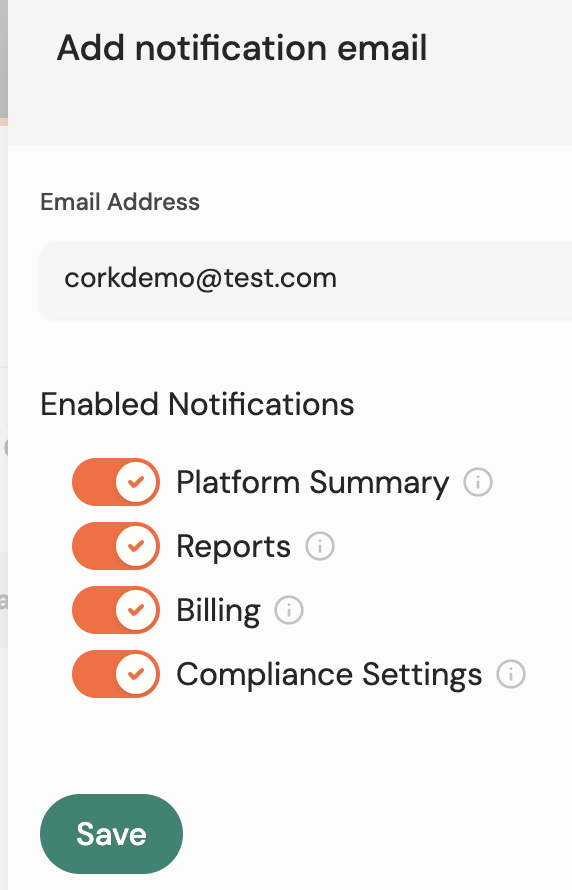
Choose which notifications they will receive:
Platform Summary
A periodic summary of platform activity and compliance alerts
Reports
Delivery of scheduled reports to this email address
Billing
Billing invoices and payment-related notifications
Compliance Settings
Alert when compliance notification settings are saved for any asset
Click 'Save'
How-To: Edit Email Notifications
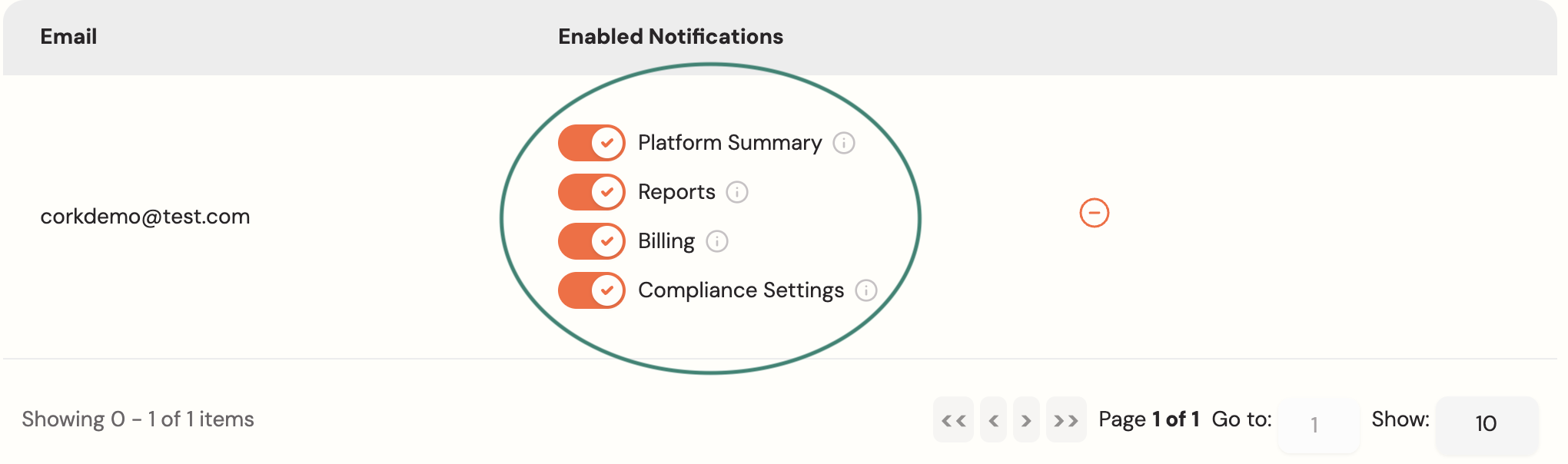
In the 'Notifications Preference' table, simply utilize the toggle buttons to update preferences.
How-To: Delete Email Notifications
In the 'Notifications Preference' table, simply click the 'remove' icon