DUO
Last updated: October 21, 2026
How to connect DUO to Cork
Generating API Key
Log into the Duo portal with an account that has the Owner Role
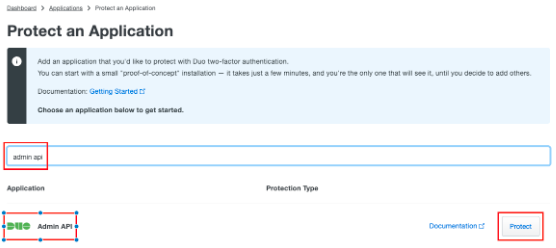
On the left nav bar navigate to Applications > Protect an Application > and then click the Protect an Application button

On the Protect an Application screen, either filter, or scroll down the screen to find Admin API (verify this is the Admin API and not the Duo Admin Panel) on the list and click the Protect button.
Name: Cork Protection Admin API
Required Permissions:
Grant accounts: Read
Grant read information
Grant read log
Grant resource: Read
On the following screen, scroll down to the Settings section and adjust the following options:
Scroll to the bottom of the page and click Save Changes
Once the changes are saved, copy the Integration Key
Leave this browser page open and continue to the “Connecting Integration” section of this article
Connecting Integration
Log into Cork Protection in a new browser tab or window
Navigate to the Integrations page
Scroll down to the Multi-factor authentication provider section
Locate Duo and click “Configure”
Paste the previously copied Integration Key into the Admin integration field
Navigate back to the Duo portal which was previously left open
Copy the value under Secret key.
Navigate back to Cork Protection and paste the Secret key into the Admin secret key field.
Navigate back to the Duo portal and copy the API hostname
Navigate back to Cork Protection and paste the API hostname into the API hostname field.
NOTE: the Accounts Integration and Secret keys are no longer required for the DUO integration. See the FAQ for more information
(Optional) If desired, enter a display name for the integration
Click the “Connect” button
FAQ
DUO deprecated their Accounts API, do I need to do anything?
DUO deprecated their Accounts API in June of 2026 (https://help.duo.com/s/article/9678?language=en_US). No update is needed for existing integrations, as they migrated existing Accounts API Apps to Admin API Apps with the required permissions.