Integrating Your Tools
Last updated: August 26, 2026
Cork provides a list of over 100+ integrations in 11 categories! By integrating your tools with Cork, you gain in-depth insight into your environment.
How-To
Navigate to the Integrations Page

Click the 'Available' section
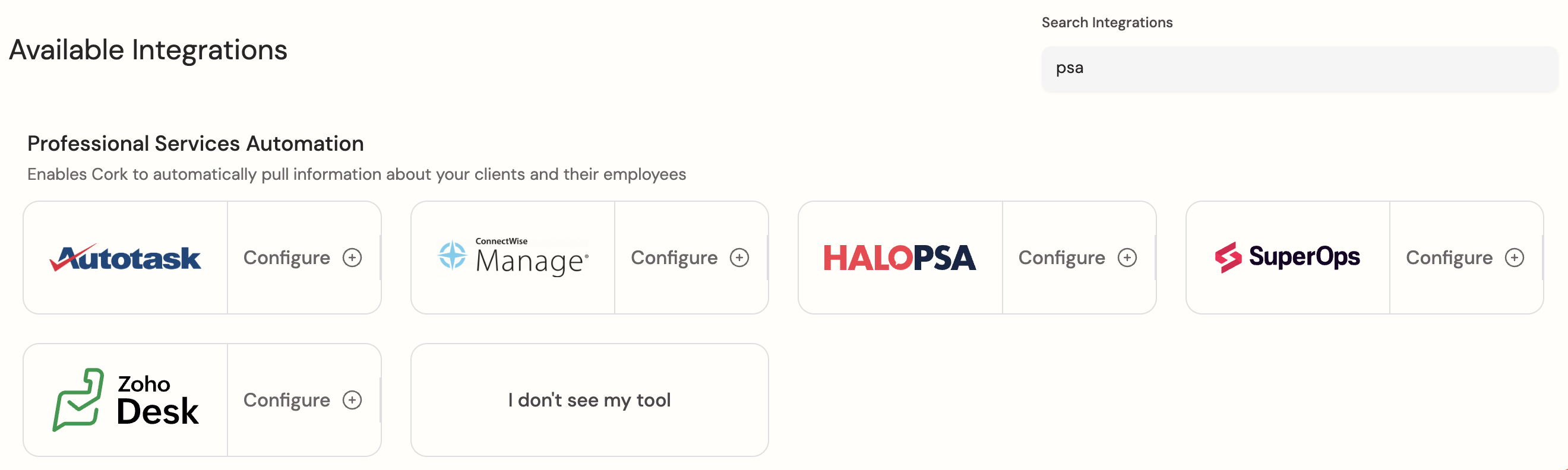
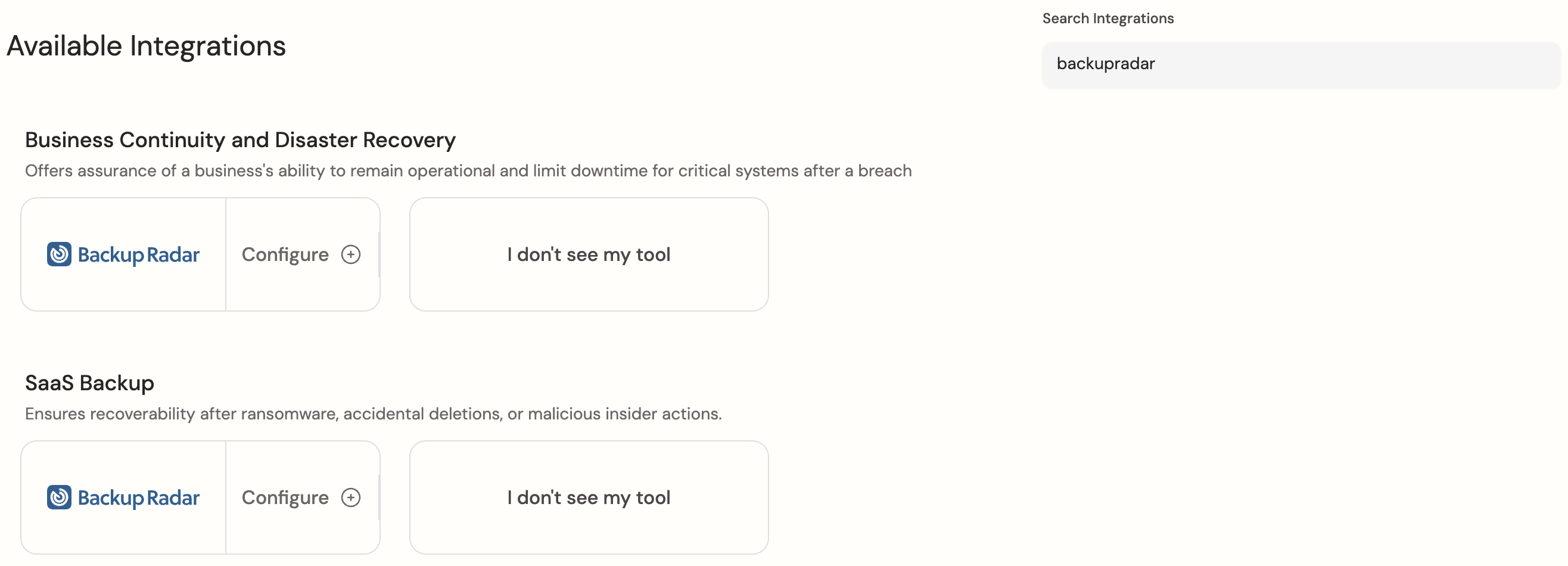
Alternatively, use the search bar or sorting mechanisms to search by company, category, or tool
Ex: search by category 'psa'
Ex: search by tool name 'backupradar'
Select the tile of the tool you wish to integrate
If you don't see your tool listed, see our guide here
Input the necessary information and credentials
Each integration has a link outlining the necessary instructions
Ex: Acronis RMM instructions link shown on platform

Additionally, you can access all our integration help articles here!
Merge/Map clients
Check out 📄 Fundamentalsto understand Cork Clients!
Check out 📄 Merge Clientsfor help!
Congratulations! You have successfully integrated your tool with Cork!
Rinse-and-repeat for as many integrations as you wish!
If you run into any issues:
Check out the FAQs
Use Cork's extensive knowledge base
Submit a Ticket
FAQs
What Do The Different Statuses Mean?
Connected: Integration data retrieved and processed successfully
Queued: Will attempt to retrieve data shortly
Fetching Integration Data: Actively retrieving data from the tool
A sync occurs:
when you integrate a tool
manually on all tools via the 'Re-sync All' button
manually on an individual tool via clicking the 3 dots, then 'Refresh' button
automatically daily
Note: These tools will vary in the amount of time they need to sync before displaying the most up-to-date data
Failed To Connect: An error occurred when attempting to connect to an integration
Common Issues & Solutions:
Credentials Have Incorrect Permissions
Solution: Double check the integration specific instructions to ensure all steps were completed correctly
Expired Credentials
Solution: Rotate your credentials by following the integration specific instructions
Failed To Fetch New Data: An error occurred when attempting to retrieve new data from an integration
In this scenario, old data is kept and any data Cork was able to retrieve will be updated
Failed To Process New Data: An error occurred on Cork's end when processing that data retrieved from an integration
Cork is happy to help determine the cause of any issues, submit a ticket and our team will work with you to find a solution!
Can't Find The Tool You're Using?
Our team is always happy to look into adding new integrations. Once a ticket has been submitted for a tool, we may contact you for support in adding that integration.
Here are the steps for notifying Cork:
Submit a Ticket
Navigate to the 'Submit Feedback or a Ticket' icon
Expand to view the icon

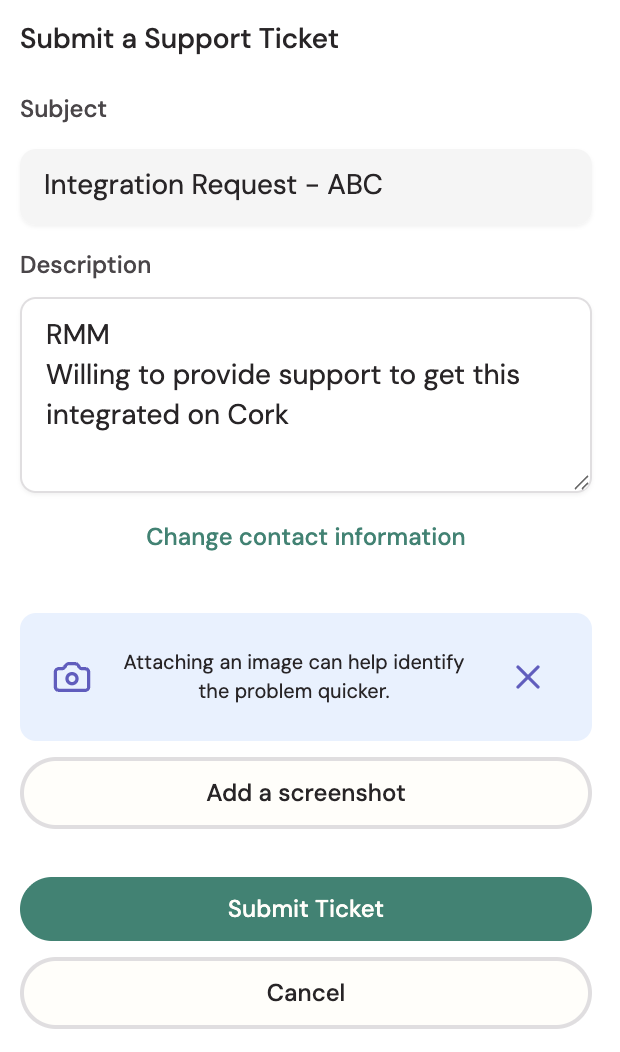
Change the subject to: "Integration Request - <tool name>"
In the description, let us know:
The tool's category
If you're willing to provide support with integrating this tool
Submit the ticket
Ex:
Attest Your Clients
Note: this can only be performed if at least 1 tool is integrated
On the Integrations page, select the 'I don't see my tool' card in the given category
Fill out the Vendor/Tool Name
Select the number of days in which you will be notified to review this attestation
Select the clients you wish to attest have this tool
Click 'Save Attestation' button
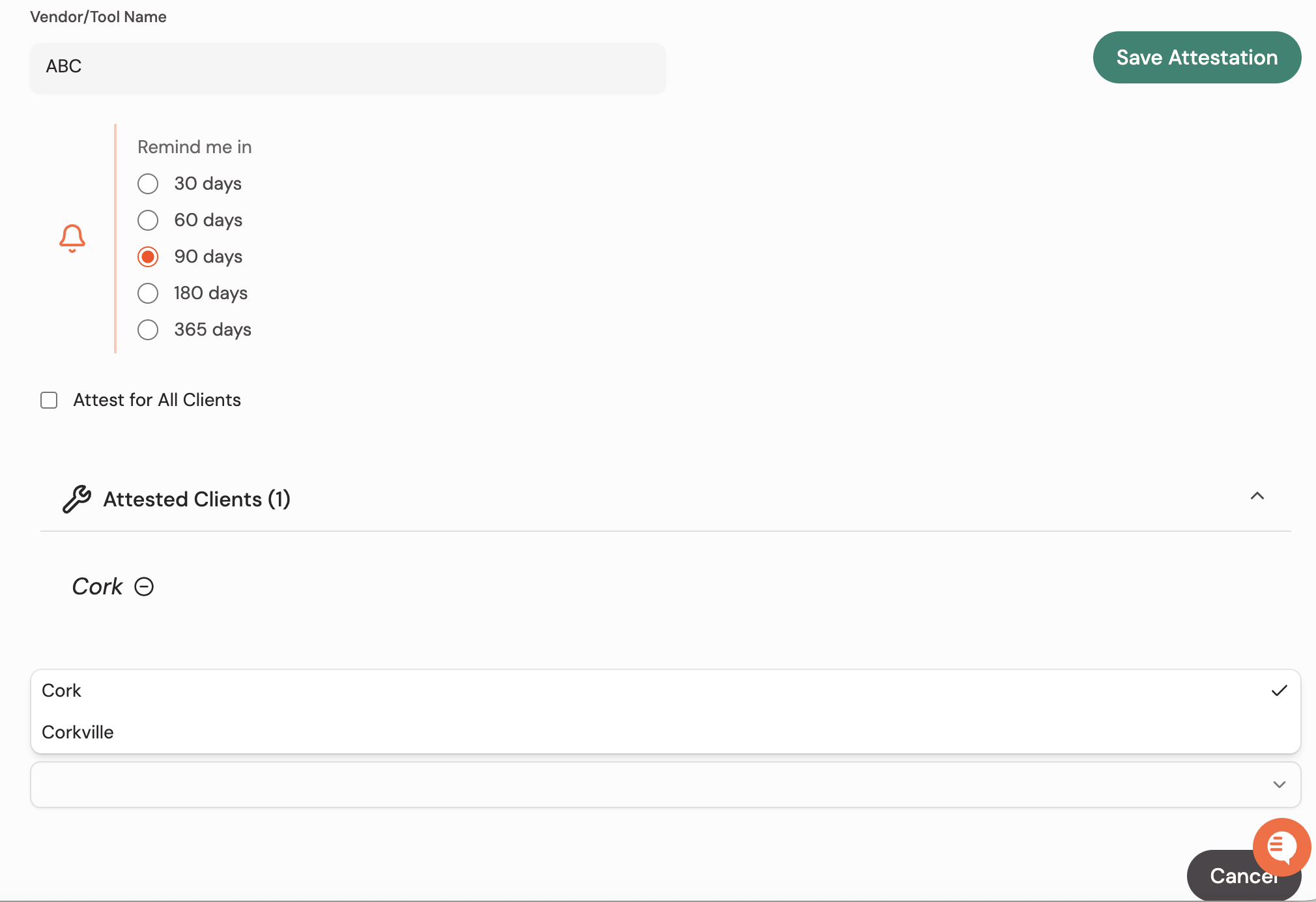
Ex: Attesting tool 'ABC' for client 'Cork' and will be notified to review it in 90 days
How do I remove an integration?
Check out the steps here 📄 Remove an Integration