Datto BCDR
Last updated: August 25, 2026
How to connect Datto BCDR to Cork
Generating API Key
Log into the Datto Partner Portal.
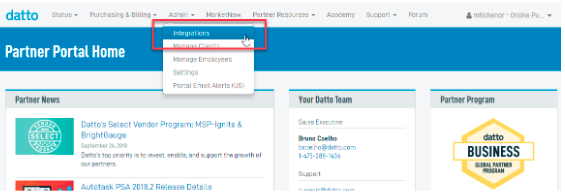
Click the Admin tab, then select Integrations from the drop-down menu.
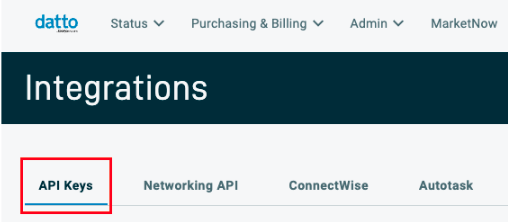
On the Integrations page, click API Keys.
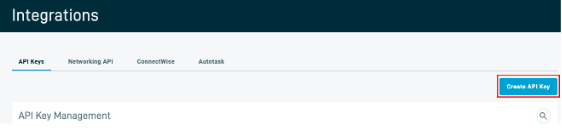
Click the Create API Key button on the right side of the screen.
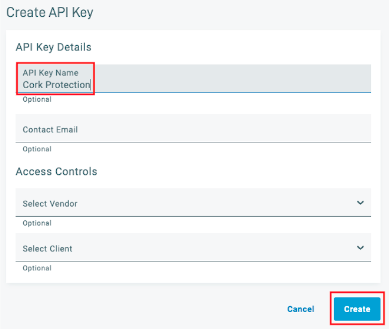
In the right pane that opens, enter an API Key Name (Ex: Cork Protection) and click Create
Copy the Public Key
Leave this browser page open and continue to the “Connecting Integration” section of this article.
Connecting Integration
Log into Cork Protection in a new browser tab or window
Navigate to the Integrations page
Scroll down to the Business continuity and disaster recovery section
Locate Datto and click “Configure”
Paste the previously copied Public Key into the Public Key field.
Navigate back to the Datto portal.
Copy the Private Key
Navigate back to Cork Protection and paste the Private Key into the Private Key field.
(Optional) If desired, enter a display name for the integration
Click the “Connect” button
Troubleshooting
No data returned
Cork only retrieves endpoints protected with SIRIS, ALTO, Backup for Azure, and Endpoint Backup for Servers. No results will return for Endpoint Backup for PCs or SaaS Protection.
Confirm that your backup devices must be associated with a client in the Datto partner portal.
Follow the appropriate steps in the Datto partner portal to complete this association,
Navigate to the option menu for this connection in Cork and click "Refresh" once step 1 is complete
Once the connection is refreshed, click "Map Clients" in the option menu and map the client identities that were retrieved in step 2.
"I'm getting an error that I can't have more than 2 sets of API keys without a specified vendor"
Datto Backup limits the number of API keys you can have without a set vendor or client, you can either create a set of keys for each client and connect individually or re-use the keys for an existing integration.