Delegated Access
Last updated: August 28, 2026
Delegated Access
Delegated Access lets you give one of your clients a read-only login to Cork that shows their data and nothing else. Other clients in your account stay completely hidden.
This is useful when a client has an internal IT team, a co-managed arrangement, or a vCISO who wants to see their own security posture without you sending screenshots or exports every week.
What a delegated user can and can't do
A delegated user gets a read-only view scoped to a single client. They can see that client's data in the platform. They cannot:
See any other client in your account
Change settings, apply financial protection, or modify integrations
Take any action on the data they're viewing
Access is per client. If you want to give someone visibility into two clients, delegate access for each one separately.
Granting Delegated Access
Go to your Clients page
Find the client you want to share and open the menu for that client
Click Delegate Access
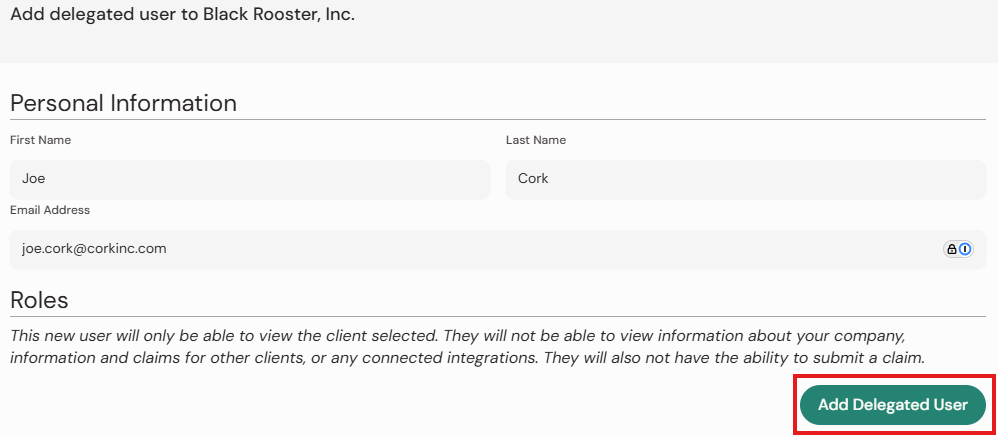
Enter the name and email address of the person at that client who should receive access
Send the invite
What happens next: The recipient gets an email invitation and completes their own registration, the same way any other Cork user does. Once registered, they log in at portal.corkinc.com and land in a view containing only that client.

Note: If you want to delegate access to the same person for another client, a new account is not created. The same account would be able to access both companies that were delegated.
Removing access
Delegated users appear in your user list alongside your internal users. To revoke access, deactivate the user the same way you would any other. See 📄 Manage Users: Deactivate User.