Risk Insights
Last updated: August 28, 2026
This guide explains what each Risk Insights tab shows, what the counts and colors mean, and how to act on what you find. It can be used as your working reference when triaging risk across your client base.
What is Risk Insights?
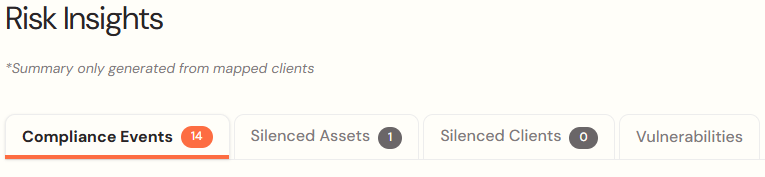
One aggregated view: Every compliance event and software vulnerability in your platform, in one place, across four tabs:
Compliance Events
Silenced Assets
Silenced Clients
Software Vulnerabilities
One filter drives all of them: The dropdown at the top right scopes every tab to a specific client, to clients with financial protection, or to all clients.
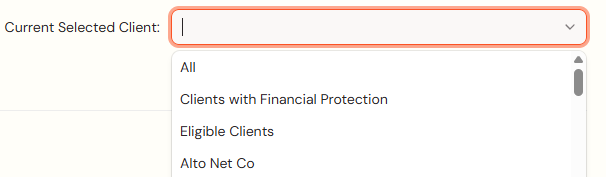
Why the default matters: If you have clients with financial protection, the view defaults to those clients. That is where unresolved risk carries financial consequence, so that is what you should be looking at first.
Compliance Events Tab
What the tab number means: The count of compliance events past their risk deadline, scoped to your client filter. This number is not a total event count.
The four sections
High-level statistics. Total events, total assets carrying an event, and what percentage of your full fleet that represents. An asset is any individual endpoint, inbox, or domain.
Daily event breakdown. Mirrors the platform summary email. Shows three things that happened today: events created, events that passed their cure period, and events resolved.
Asset compliance breakdown. Splits affected assets by type, so you can see whether your risk sits on endpoints, inboxes, or domains.
Asset tables. Separate sections for endpoints, inboxes, and domains, sorted with the most recent events on top.
What the colors mean
The background colors of each row on the compliance events table represents how long that event has existed and its status
Blue means that the event created today
White means the event exists but has not hit its risk deadline
Orange means past the risk deadline.
Working the Asset (Endpoints, Inboxes, Domains) Tables
Drill into any asset: The arrow on the left expands the row. A single asset can carry multiple events, and each one expands to show its own risk metadata.
Check the evidence before you dispatch: The metadata tells you why the event was fired. A backup event will show that backups are running but the last three failed. That is what a tech actually has to fix, and the event clears once the next backup succeeds.
Use the help icon: Every event line links to the knowledge base article for that event type. Go there for how the risk is generated and what exclusions apply.
Filter to what you can act on: Filter by event type, or to assets past the risk deadline only. That second filter isolates anything affecting financial protection eligibility.
Export the work, not the page: The CSV honors your filters and returns the entire filtered table, not just the page on screen, including device info, client info, and the evidence metadata. Filter to one event type, export, hand it to a tech as a work queue.
Inboxes and domains behave identically: Same drilldown, search, filters, and help icons.
Silenced Assets and Silenced Clients
Where settings land: Managing risk on an endpoint, inbox, or domain puts that setting on Silenced Assets. Client-level silencing gets its own tab and works the same way.
What the tab count means: Every silencing action requires a review period. The tab count, or the number in the orange circle located on the table, is the number of settings past their review date.
What each row shows:
Asset name
Client
Where the asset was observed
Which event types are silenced
The review reason
The next review date
Who applied the silence
Excluded from financial protection: Silencing includes a checkbox that can remove the asset from financial protection. This is the deliberate "we are not managing this risk" option, and it changes what is covered. Check it every time you review.
Refresh vs. edit: If the setting is still correct and just needs extending, use the clock icon on the row, or the button at top right to refresh the whole table. A refresh reapplies identical settings and resets the review period. Open Manage Risk Settings instead when the reason, notes, or scope need to change. Saving that form has the same effect as a refresh.
When to silence at the client level: Co-managed clients are a common case. If the client runs their own RMM or EDR, or declines a control outright, silence the client rather than going asset by asset.
Software Vulnerabilities Tab
Where the data comes from: Most supported RMM vendors report software inventory. Cork maps those products and versions against known CVEs.
Priority buckets: Every vulnerability lands in critical, accelerated, or routine. The highest priority per device view shows how many devices sit in each bucket at their worst level.
Most impacted software vendors: Shows which vendors account for the bulk of your CVE count. In most environments one browser or mail client dominates, which means a single update campaign clears a large share of your exposure.
Peer comparison: Vulnerabilities per device on average, against other MSPs of similar size. Read it as density, not volume. Low critical density with higher routine density is normal.
Drilling into a CVE
The path: Device, then affected products > Then affected versions > Then the vulnerabilities on that version. One device can carry multiple products, versions, and vulnerabilities per version
Click the row or use the action menu on the right to drill into the next level.
The three scores, in plain terms (Each has a tooltip in the column header):
CVSS is how severe it is
EPSS is how easy it is to exploit
KEV is whether it has been confirmed to be exploited in the wild
One caution on KEV: No KEV flag does not mean a vulnerability has never been exploited. It means no exploitation has been reported. Treat it as a prioritization signal, not an all-clear.
Resolution column: This tells you what actually fixes the vulnerability. For browsers and common desktop software, updating to the current version is usually enough.
Match the grouping to the job: Group by device for hands-on work and installs. Group by software to run a fleet-wide update campaign on one product. Group by CVE to answer "who is exposed to this," then click in for the device list.
Filters: Filter by priority bucket, and by active vs. silenced. If a table looks emptier than expected, check the filters first. Breadcrumbs get you back out of any drilldown.
Software Installer
Recent installs: If you run a supported RMM, this shows what you have pushed through the software installer.
If your RMM is not supported, or you do not want Cork pushing scripts: Use Generate Installer Script. Choose a package manager, choose a package, confirm the version. It defaults to the most recent version, or select a specific one.
What you get: A downloadable PowerShell script. Bring it into your RMM or run it on the device, and it installs or updates the package.