Mapping Page
Last updated: October 22, 2026
A quick guide to the new Mapping page in Cork Vantage, where Cork client and integration mapping review now lives.
Getting There
Location: Click Mapping in the left navigation bar.
Two tabs:
By Cork Client shows reviews Cork raises from your data, with the evidence behind each one.
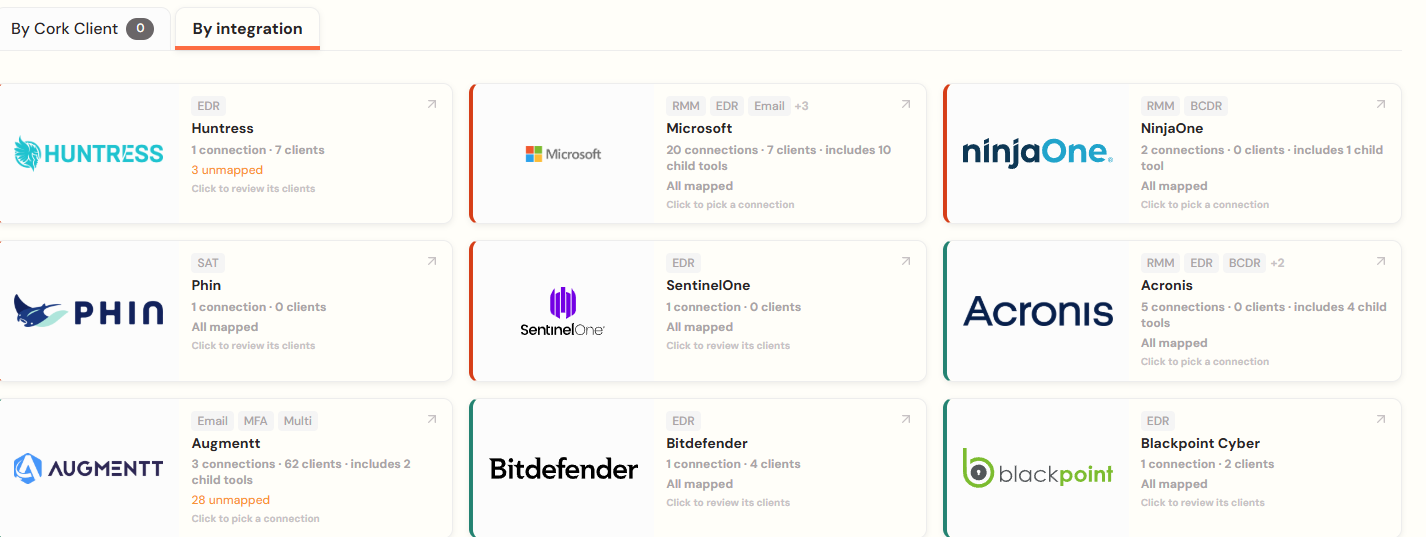
By Integration shows every tenant in one tool and the Cork Client it maps to.
What Moved Here
Mapping tab on the Clients page: Removed. Use the "By Cork Client" tab instead.
Integrations page > three dots > Map Clients: Replaced by the By Integration tab. Select the integration you want to map in the new Mapping page.
New integration setup: Still enter credentials, map clients, summary.
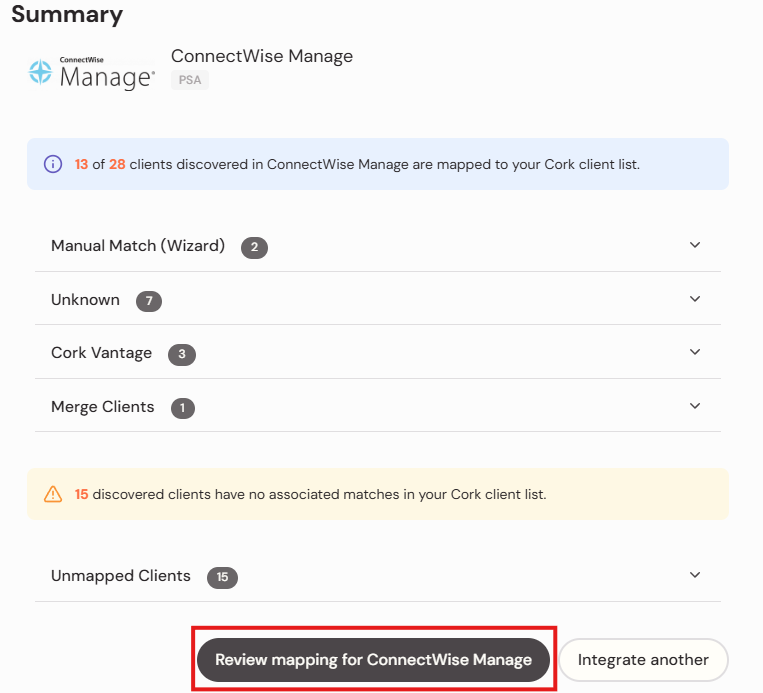
The summary now has a Review Mapping button that opens By Integration for that tool.
Unmapped Clients tab: Still on the Clients page. Its Review Mapping button sends you to the Mapping page.
Merge Clients: Still available from the Clients page if you prefer to stitch clients together manually.
Three Things You Can Do With Every Review
Act: If the suggestion looks right, use the quick action on the card.
Check the evidence: Click a client name or See Why Cork Grouped These to open the evidence modal. It shows the shared devices, hostnames, inboxes, and domains behind the suggestion.
Review: Open the review screen to adjust what Cork proposed before anything is applied.

Potential Cork Clients
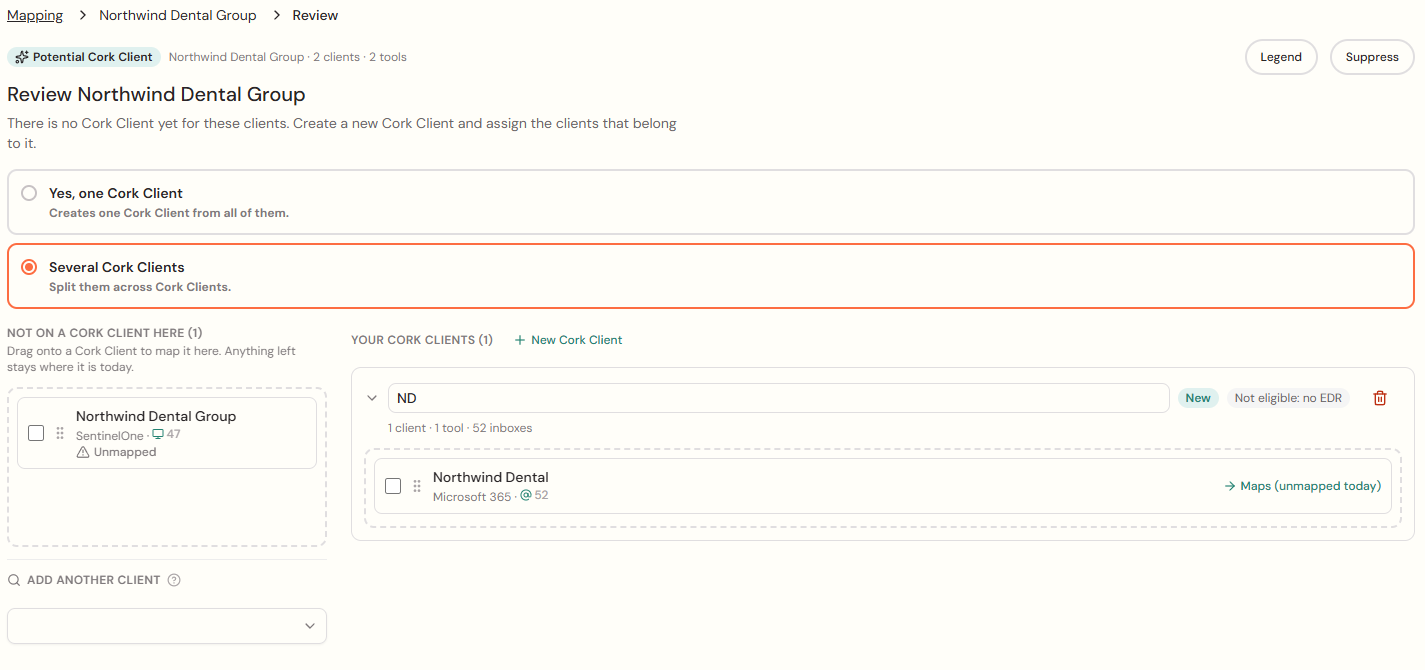
What it means: Tools that match each other but have not been made into a Cork Client yet. This is always the first review type, and the main one during onboarding.
Create Client: Confirm the name and create it. It appears on your Clients page right away.
Review: Keep everything as one client, or split it. Make a new Cork Client, name it, and drag tenants into it. Use Add Another Client to search for and pull in any other tenant.
Confirm screen: Before anything changes, you see a results summary of clients created, items remapped, and Financial Protection eligibility.
Names Don't Match
What it means: One Cork Client is named differently across your tools. Cork wants to double-check it is the same business.
Approve: Confirms the mapping and clears the review.
Review: Answer whether it is one business or several, then split out anything that belongs on its own.
Possible Franchise
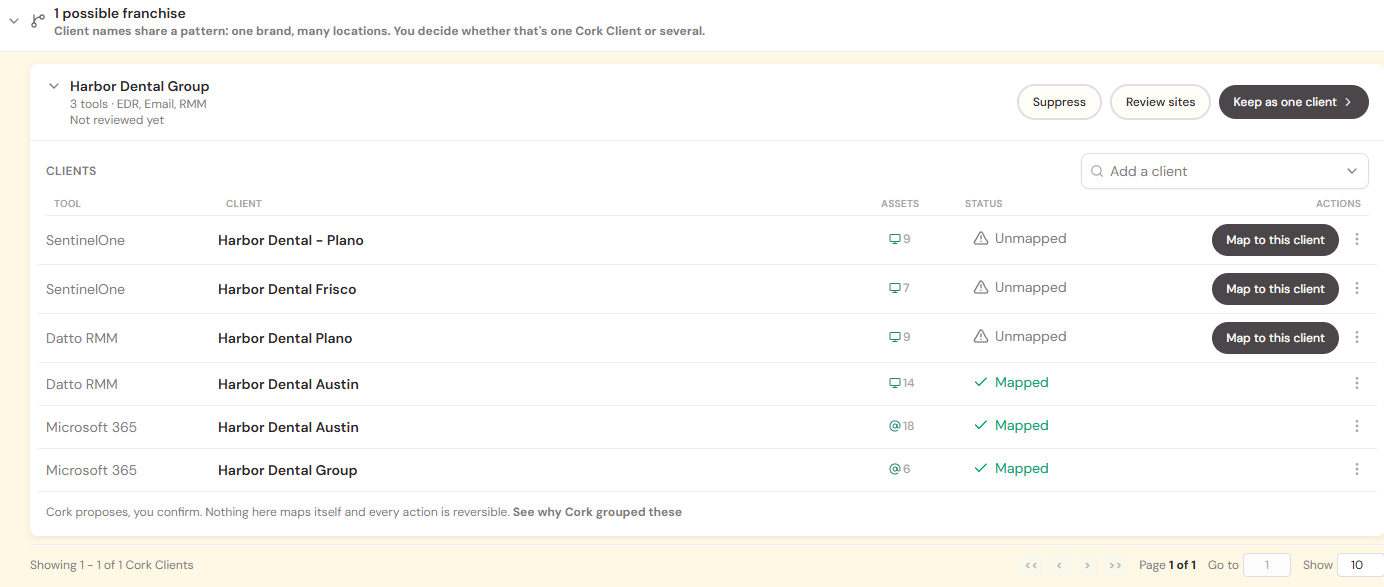
What it means: Closely linked tenants, such as several locations sharing a domain but not devices or inboxes. Cork cannot tell from the data alone whether it is one client or several.
Keep as One Client: Monitor every location together.
Review Sites: Split them out. Cork proposes groupings by name as a starting point, and you adjust from there.
Other Review Types
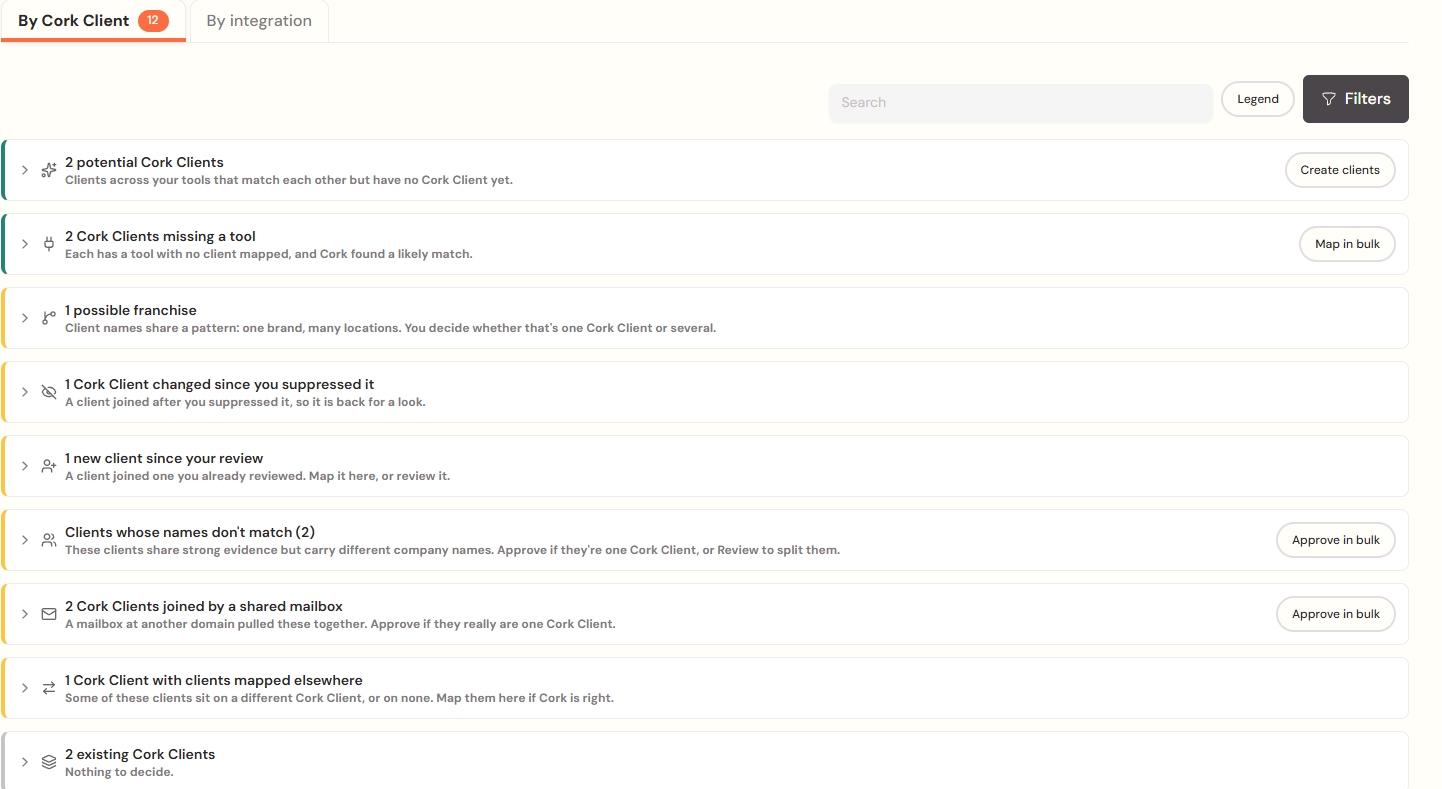
Same pattern: Each one follows the same act, check evidence, review flow. Hover the info icon next to any filter for a description.
Actions on a Single Tool
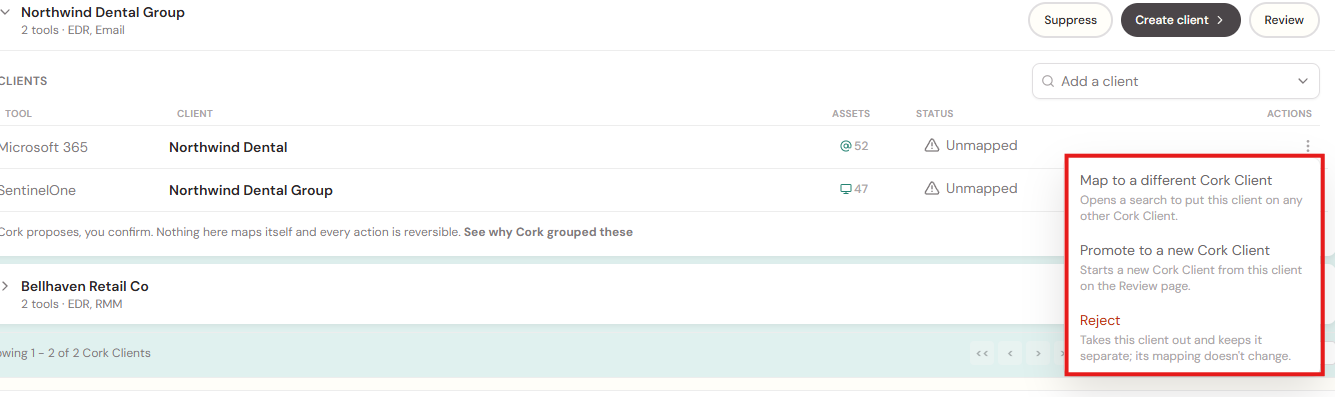
Use the three dot icon on any tenant to reveal the following actions:
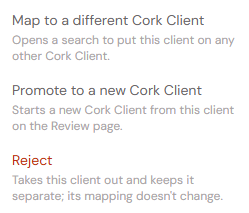
Map to a different Cork Client: Search your existing Cork Clients and move the tenant there.
Promote to a new Cork Client: Use this tenant as the starting point for a new client, then add other tools in the review screen.
Reject: Tells Cork this one tool does not belong. Cork also uses rejections to improve the mapping algorithm.
Bulk actions: Check multiple tenants to map or unmap them at once.
Suppress vs Reject
Suppress: Silences the whole suggestion. Nothing moves. Use it when you do not want to act yet, like a client you are not ready to monitor.
Reject: Silences one tool within a suggestion because it is wrong.
How long it lasts: Both come back after 90 days if the evidence is still there. If the data changes and the match breaks, Cork will not raise it again.
Filters, Bulk Create, and the Legend
Filters: Narrow by integration or review type. Hidden clients are excluded by default, with an option to include them.
Bulk create: Create Clients and Map in Bulk handle every suggestion at once. Check or uncheck each one first. Ideal for onboarding.
Legend: Explains every status, icon, and badge, on both the main page and the review screen.
By Integration Tab
Layout
Integration list: Grouped by vendor, like the Connected tab on the Integrations page. Click one to open it.
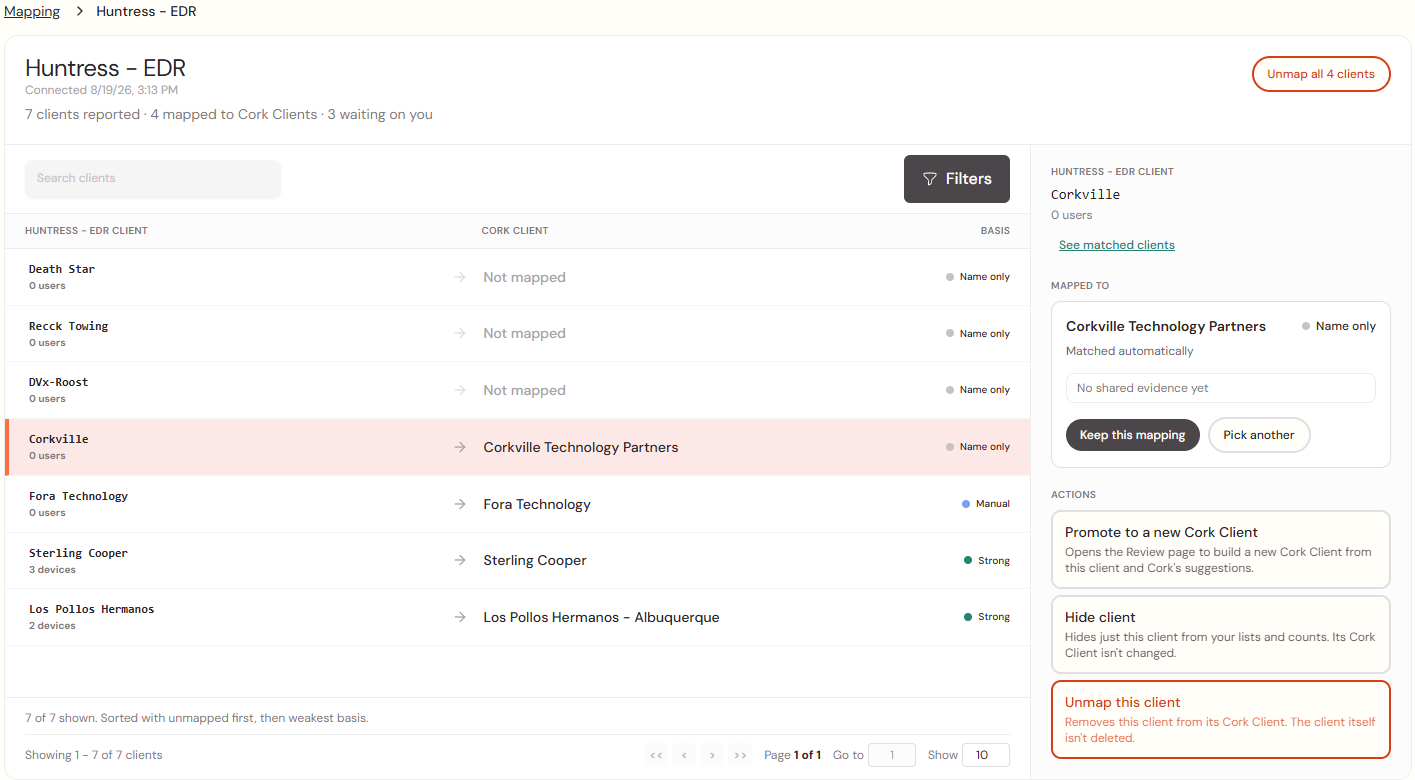
Left column: Every tenant in that tool.
Middle column: The Cork Client each tenant maps to.
Right column: The basis for the mapping, such as manual or shared evidence, plus any suggestion Cork has.
Fixing a Mapping
Keep: Accept the current mapping as is.
Pick Another: Choose a different Cork Client from your list.
Suggested candidate: If Cork sees stronger evidence for another Cork Client, it shows it here for a one-click remap.
Tip: A manual mapping with no shared evidence is a good place to look for potential mistakes.
Promote, Hide, and Filter
Promote: Turn a tenant into a new Cork Client. The same review screen opens with suggested matches from other tools.
Hide: Hides that tenant and removes it from mapping.
Filters: Mapped, unmapped, and hidden. Hidden tenants are excluded by default.
Other Resources
📄 Mapping Mode: How automatic and suggestion mapping modes work, and how devices and inboxes are matched
📄 Merge Clients: Video walkthrough of manually merging clients
📄 Integrations Page: Connecting, re-syncing, and troubleshooting integrations